Blur, pixelate or cover private details in a screenshot
Redact a screenshot online without sending it anywhere: drag a box over an email, a name or an API key, choose blur, pixelate or a solid box, and export a clean copy.
or drop a file — the editor opens with the blur tool ready
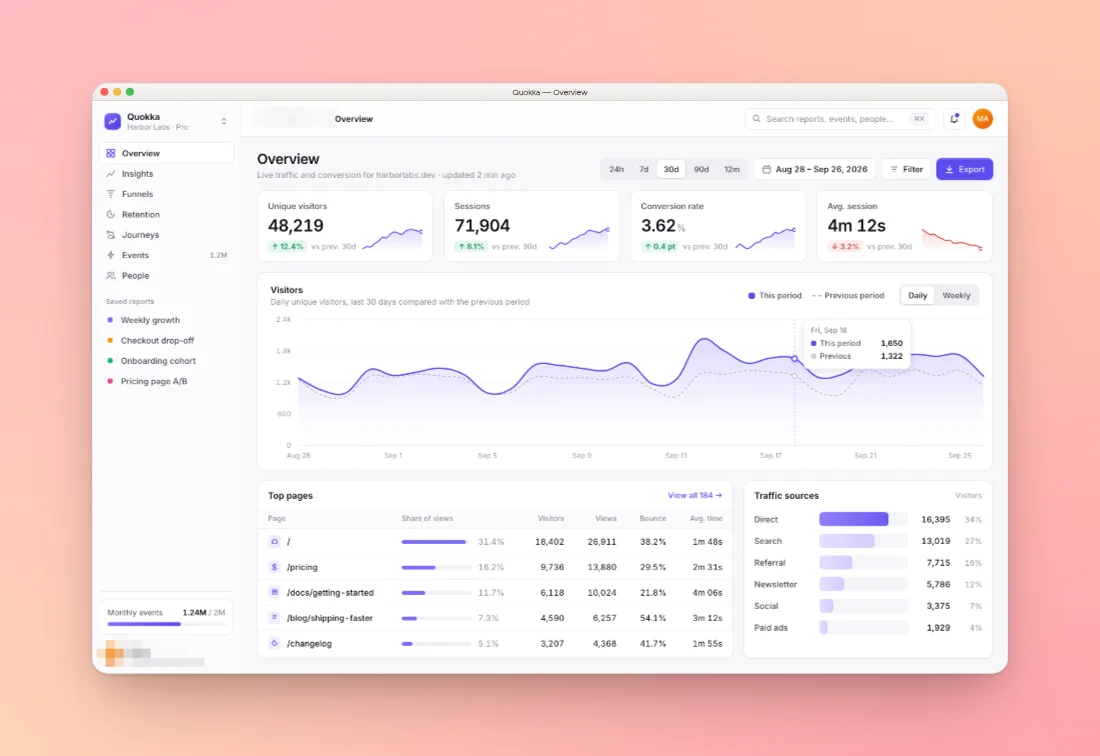
How to redact a screenshot
Paste
Paste or drop the screenshot above. The editor opens with the blur tool picked (press B for it any time).
Drag over the private bits
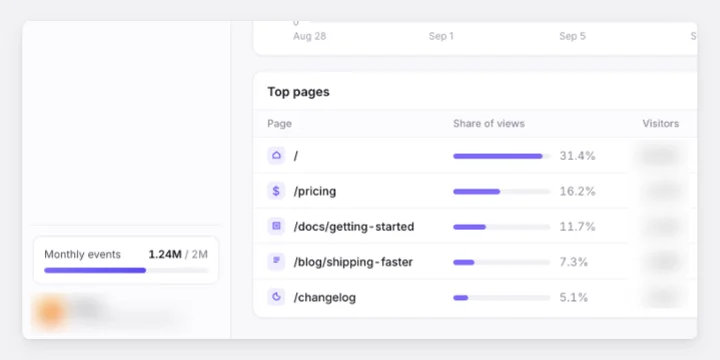
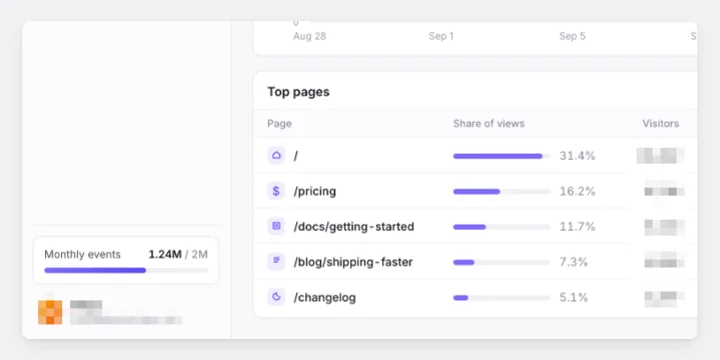
Drag a box over each detail. Under Mode, choose Blur, Pixelate or Solid, and set the strength or colour.
Export
Copy or download PNG, JPEG or WebP. The redaction is part of the pixels, not a layer on top.
Before, blurred and pixelated
Open the editor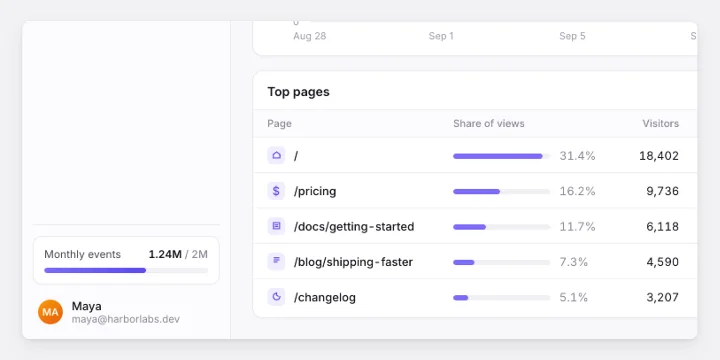
What people usually hide
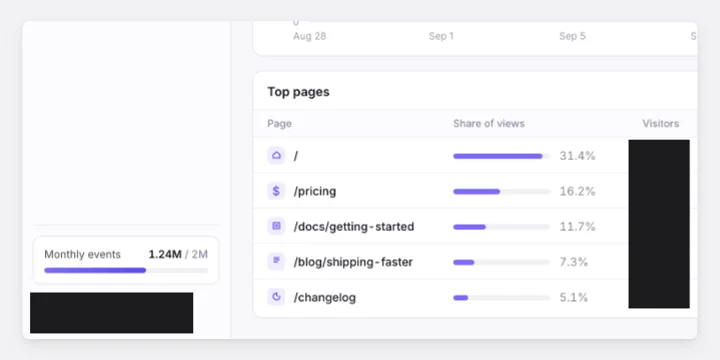
Most screenshots carry something that shouldn't travel: a customer's name, your own email, a token in a terminal.
Emails and names
User menus, comment threads, CRM rows and support tickets. Cover the whole line, not just the part that looks sensitive.
API keys, tokens and passwords
Terminal output and settings pages. Use a solid box, and rotate the key anyway if it was ever visible in a shared image.
Numbers
Revenue, balances, order totals and IDs in dashboards you want to show without the figures.
Addresses and phone numbers
Checkout pages, maps and contact forms.
Faces and avatars
Profile pictures in team lists or video calls. Blur works well here because shapes, not text, are the concern.
Browser chrome
Other tabs, bookmarks and the address bar. Or crop them out and add a clean browser frame instead.
Blur, pixelate or solid box: which is safe?
All three hide the detail from a casual look. They differ in how much of the original survives in the pixels.
- Solid covers the area with one flat colour: Auto (dark or light, picked from what's around it), black, white or your own. Nothing of the original is left, so it's the right choice for passwords, keys and anything that must never be recovered.
- Pixelate averages the area into blocks. Large blocks are safe for most things. Small blocks over short text can sometimes be guessed back, because researchers have shown that pixelated text can be matched against rendered guesses.
- Blur looks the softest. A light blur over text can leave enough shape to read or reconstruct, so turn the strength up for text, or use one of the other two.
A rule of thumb: if you'd be upset to see it recovered, use a solid box. Keep blur and pixelate for things that only need to be unreadable at a glance, like faces or figures in a demo.
Redact a screenshot without uploading it
Many online redaction tools ask you to upload the very image you're trying to keep private. Shotcandy is a static website: the screenshot is decoded, redacted and exported inside your browser tab. There is no server that could receive it, and no account.
The export contains only the redacted pixels. The original screenshot does stay in your design (so you can move a box later), in your browser's storage and in any .shotcandy project file you save. Share the exported image, not the project file.
Then make it look good
Redaction boxes stick to the screenshot, so they stay in place when you change the style, add a window frame, tilt the card or resize the canvas for X or LinkedIn. In a batch, each image keeps its own boxes, and in a multi-screen design they stay on the screen you drew them on.
Redaction methods compared
The same three options, side by side.
| Feature | Solid | Pixelate | Blur |
|---|---|---|---|
| What's left of the original | Nothing | Block averages | A smoothed version |
| Best for | Passwords, keys, IDs | Names, emails, numbers | Faces, photos, backgrounds |
| Looks | Deliberate, obvious | Clearly censored | Soft, least distracting |
| Risk on short text | None | Low with large blocks | Higher with a light blur |
Rules of thumb, not guarantees: when in doubt, use a solid box.
Screenshot redaction FAQ
Related tools
Is my screenshot uploaded when I redact it?
No. Everything happens in your browser. Shotcandy has no server to upload to.
Can someone undo the blur in my exported image?
Not by removing a layer: the export is a flat image. But a light blur or small pixel blocks over text can sometimes be reconstructed. For anything sensitive, use a solid box.
How do I blur part of a screenshot?
Paste the screenshot, press B (or pick the blur tool), and drag over the area. Under Mode, choose Blur, Pixelate or Solid, and adjust the strength or colour.
Can I redact a screen recording?
Yes. Blur boxes work on MP4, MOV and WebM recordings too. They stay in the same place for the whole clip, so check that nothing private moves out from under them.
Does it work on a phone?
Yes. Open the Draw tab, pick the blur tool and drag over the area with your finger.
Is it free?
Yes, with no watermark and no account. Shotcandy is open source under the MIT license.
Your next screenshot deserves better
Open the editor with the blur tool ready.