Style a whole folder of screenshots at once
A batch screenshot editor in your browser: drop up to 100 screenshots, give them one background, frame and shadow, fix the odd one out, and export them all with their original file names.
or a folder — they open together, in one style
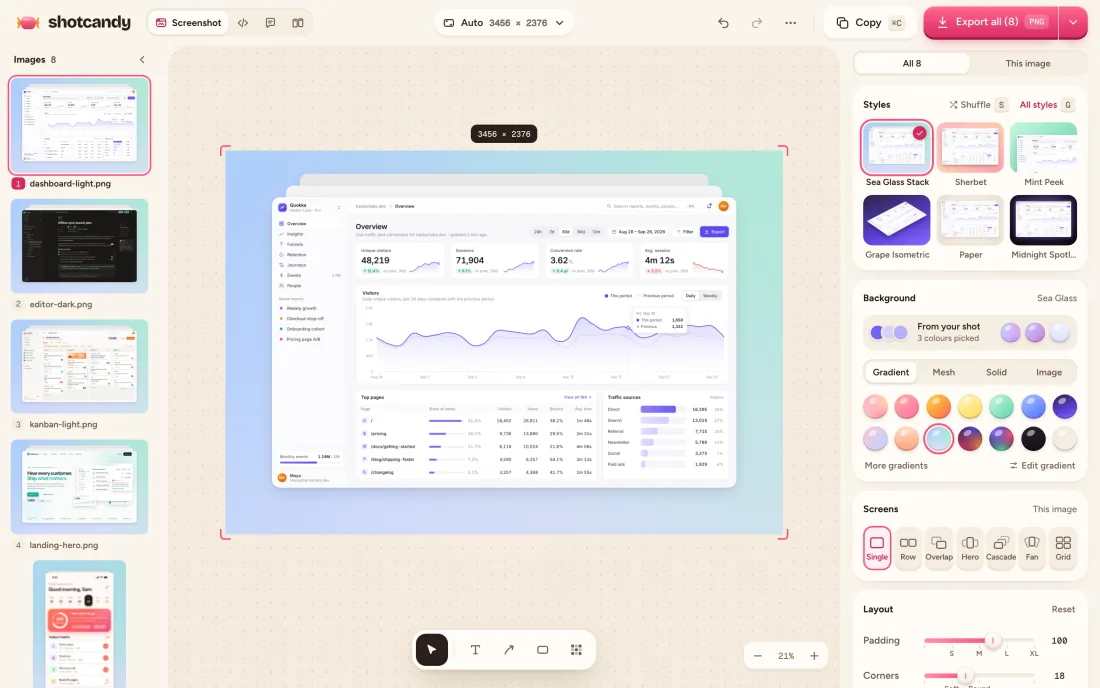
How to edit screenshots in bulk
Drop them in
Drop several screenshots or a whole folder, paste, or choose files. They're sorted by name, so shot-2 comes before shot-10.
Style them all
Pick a style and every image gets it. Switch to This image to change one without touching the rest.
Export all
Save a ZIP, write straight into a folder (Chrome and Edge on a computer), or share from a phone. Names are kept.
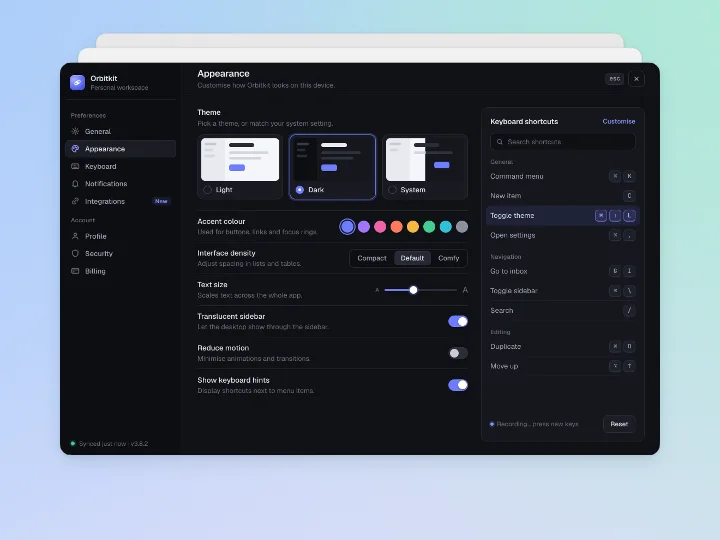
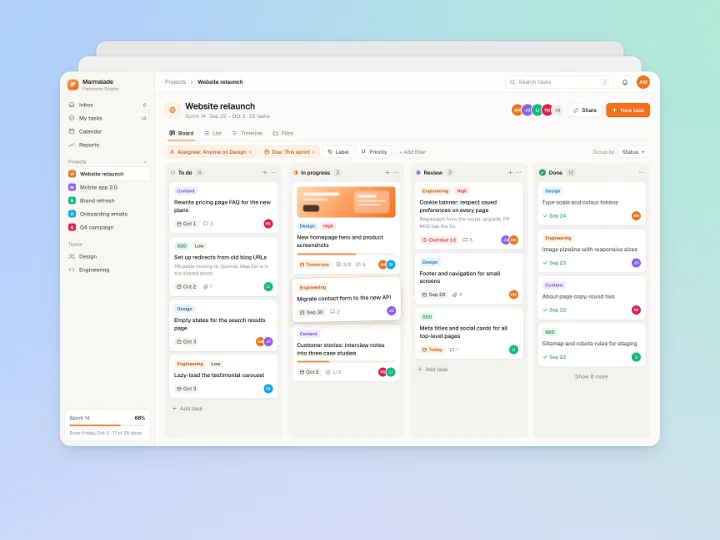
One style, three screenshots
Open the editor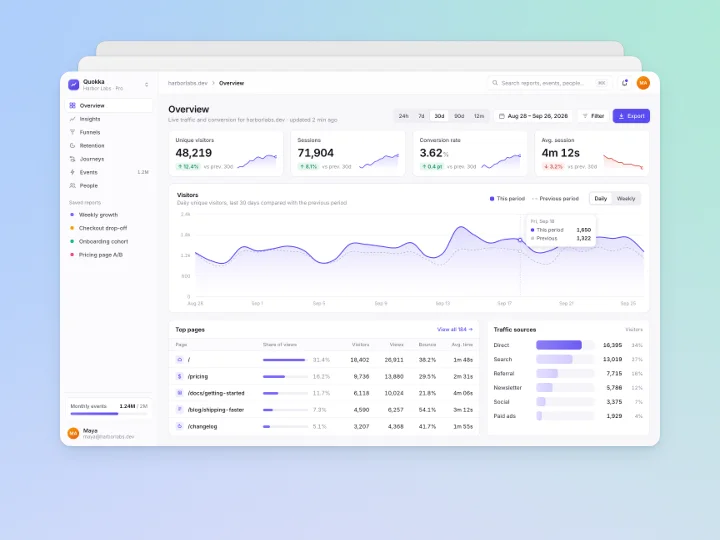
When a batch saves the afternoon
Styling one screenshot takes seconds. Styling forty for a docs site by hand, and keeping them consistent, is where a batch helps.
Documentation and help centres
Give every screenshot in a guide the same background and padding, then drop the ZIP into your docs folder. The file names already match your Markdown.
Release notes and changelogs
Style every screen from a release in one pass, so the post looks like one piece.
Course slides and tutorials
Frame thirty steps of a walkthrough the same way. A 16:9 size keeps them all slide-shaped.
Portfolio and case studies
Put each screen of a project in a matching device or window frame.
Social sizes
Pick one size for the batch, like X or Instagram, or give a single image its own size.
Link previews
Make a 1200 × 630 Open Graph image for every page from its screenshot, in one export.
One style for all, with exceptions
A batch is one shared style plus each image's own changes. With the switch on All, a new background, frame, shadow, size or motion goes to every image. Flip it to This image and the change stays on the image in front of you; the others don't move. Small dots on the thumbnails show which images have their own changes.
Each image keeps its own annotations, caption and crop, so an arrow on one screenshot never lands on the next. Blur and pixelate boxes are per image too, which matters when you're hiding personal details before you export.
Export as a ZIP, into a folder, or to your phone's share sheet
Export all renders the images one at a time with your export settings (PNG, JPEG or WebP, 1× to 4×) and streams them into a ZIP. In Chrome and Edge on a computer it can instead write them into a new Shotcandy folder inside a folder you pick. On a phone, it hands the files to the share sheet.
Every file keeps its original name: login.png comes out as login.png. If two names clash, the second gets "(2)". If one image fails, the rest still export and you can retry the ones that didn't.
Limits, stated plainly
- Up to 100 images on a computer and 30 on a phone, to stay within memory.
- Batches work in Screenshot mode. Screen recordings open on their own and are skipped if you drop them with images.
- Writing into a folder needs Chrome or Edge on a computer; everywhere else it's a ZIP.
- The batch is saved in your browser and survives a reload. It isn't uploaded anywhere, so it won't follow you to another device.
From a batch to one multi-screen design
Select 2 to 6 images in the list (Shift-click, or ⌘-click on a Mac and Ctrl-click elsewhere) and choose Combine into one design. They become one image in a layout such as Side by side, Hero or Grid, with the batch's style. See multi-screen mockups for the six layouts.
Batch screenshot tools compared
Most screenshot beautifiers style one image at a time. These are the tools we found that handle many at once.
| Feature | Shotcandy | Screenshot Studio | Rotato | Canva |
|---|---|---|---|---|
| Price | Free | Free | $79 to $199 one-time | Bulk Create needs a paid plan |
| How it batches | Drop images or a folder, one shared style | Slides in a project share one style | Drag screenshots onto a scene, render all | Fills a template from CSV or Sheets data |
| Change one image only | Yes | Not in the main editor | Not listed | Yes, per design |
| Output | ZIP, a folder, or share sheet | ZIP | A folder you pick | Designs in Canva |
| Keeps file names | Yes | Not listed | Can use them as labels | Not listed |
| Runs on | Any browser | Browser | Mac | Browser and apps, desktop only for Bulk Create |
Checked on 30 September 2026 on each tool's own site (linked in the table). "Not listed" means we couldn't find it there. Prices and features change, so check before you decide. Rotato's batch rendering is described in its help centre; Canva's in its Bulk Create help.
Batch screenshot editor FAQ
Related tools
How many screenshots can I edit at once?
Up to 100 on a computer and 30 on a phone. Drop more and Shotcandy tells you how many it skipped.
Can I drop a whole folder?
Yes. Drop a folder onto the editor, or choose Add a folder… from the ••• menu. Folders inside it are read too, and hidden files are ignored.
Will my file names be kept?
Yes. With the default file name setting, login.png exports as login.png. You can also set your own pattern with the original name and a number.
Can one screenshot look different from the rest?
Yes. Switch from All to This image and change it. The other images keep the shared style.
Are my screenshots uploaded?
No. Import, styling and export all happen in your browser. The batch is kept in your browser's storage so a reload doesn't lose it.
Can I batch screen recordings?
Not yet. Recordings open one at a time; if you drop them with images they're skipped and the images carry on.
Does it work on a phone?
Yes, with up to 30 images. Export all sends the files to your phone's share sheet, so you can save them to Photos or Files.
Your next screenshot deserves better
Open the editor and drop in a folder.