Make an Open Graph image from any screenshot
Link previews at exactly 1200 × 630, the size Facebook, LinkedIn, Slack and X expect. Paste a screenshot, pick a style, export. Nothing leaves your browser.
or drop a file — the editor opens with the 1200 × 630 canvas ready
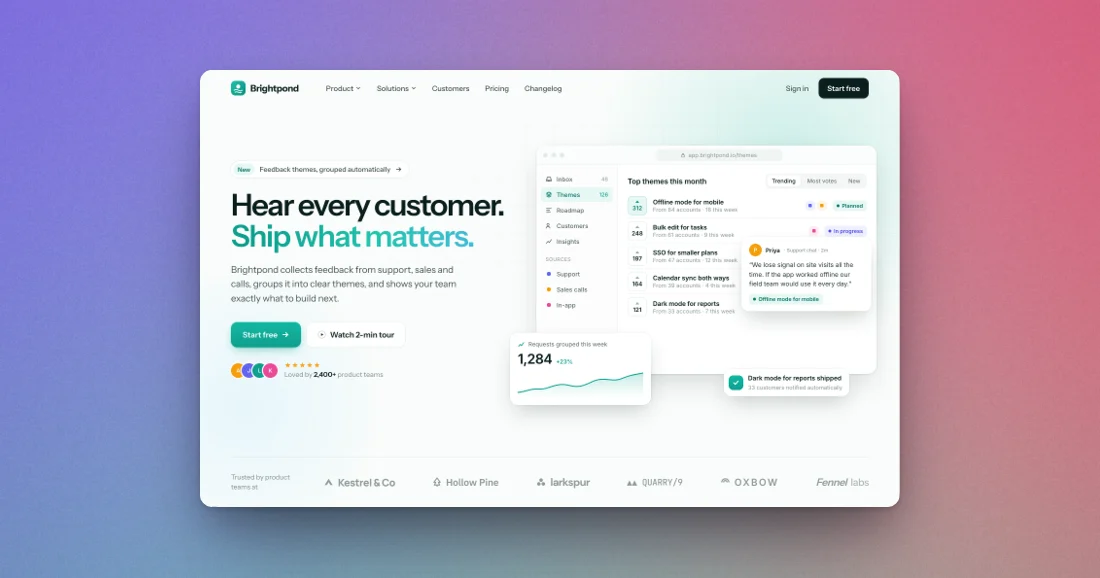
How to make an Open Graph image
Paste
Copy a screenshot of your page and press ⌘V (Ctrl+V), drop a file, or pick one.
Pick a style
The canvas is already 1200 × 630. Choose a background, frame and shadow; your shot fits automatically.
Export
Download a PNG or JPEG at 1× or 2× and add it to your page's og:image tag.
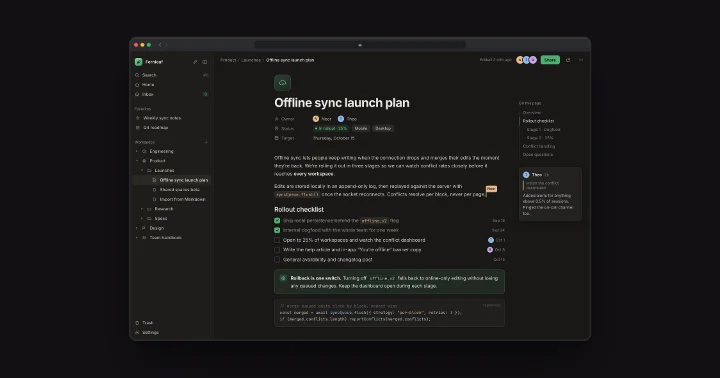
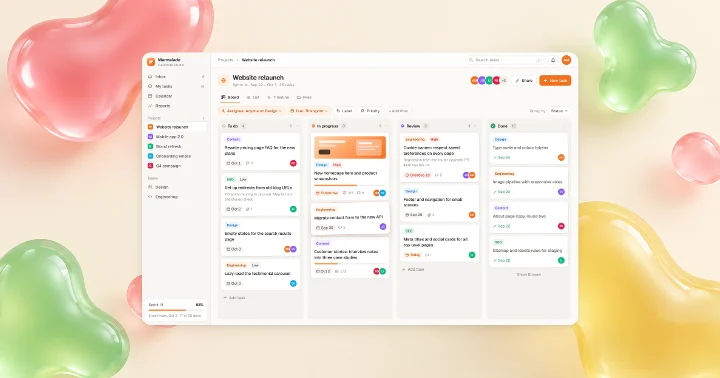
Made with this tool
See all 42 styles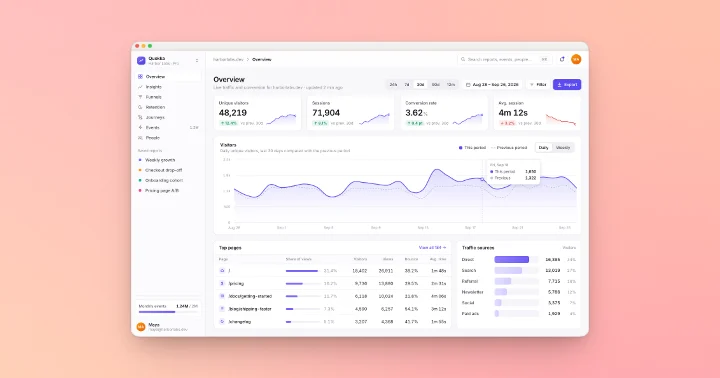
What you can do with it
An Open Graph image is the picture that shows when someone shares your link. A screenshot of the product usually beats a stock photo or a logo on a flat colour.
Landing pages
Show the product itself in the preview. People see what they'll get before they click.
Blog posts and changelogs
Make one per post from a screenshot of the feature you wrote about.
Docs pages
Give each section its own preview, so links shared in Slack or Discord say which page they point to.
Product Hunt gallery
There's a 1270 × 760 preset for Product Hunt's gallery images, next to the Open Graph one.
Launch posts
Export the same design at X, LinkedIn and Open Graph sizes by switching the size preset; the screenshot refits each time.
Several screens
Put 2 or 3 screenshots side by side in one preview with a multi-screen layout.
Open Graph image sizes at a glance
Every size below is a preset in the editor's size menu (press K). The numbers come from each platform's own documentation.
| Where | Size (px) | Shape |
|---|---|---|
| Open Graph (Facebook, Slack, iMessage) | 1200 × 630 | 1.91:1 |
| X link card | 1200 × 628 | 1.91:1 |
| X image post | 1920 × 1080 | 16:9 |
| X portrait post | 1440 × 1800 | 4:5 |
| LinkedIn link or image post | 1200 × 628 | 1.91:1 |
| LinkedIn square | 1200 × 1200 | 1:1 |
| LinkedIn portrait | 720 × 900 | 4:5 |
| Product Hunt gallery | 1270 × 760 | about 5:3 |
X (Twitter) card image size
A link on X shows a large image card when the page has twitter:card set to summary_large_image. The card is 1.91:1, so 1200 × 628 (or the Open Graph 1200 × 630) fills it with no cropping. X's image specifications cap images at 5 MB.
For an image posted on its own (not a link), use the X post preset at 1920 × 1080, or X portrait at 1440 × 1800 to take up more of the timeline.
LinkedIn preview image size
LinkedIn's image guidance lists 1200 × 628 for link and landscape image posts, 1200 × 1200 for square and 720 × 900 for portrait, with a 5 MB limit. Link previews read your page's og:image, so an Open Graph image covers LinkedIn too.
Facebook link preview size
Meta's sharing guide asks for at least 1200 × 630 at 1.91:1, up to 8 MB. Smaller images can show as a small thumbnail next to the link instead of a large card. Slack, Discord, iMessage and WhatsApp read the same og:image tag.
Add it to your page's head like this: <meta property="og:image" content="https://…/og.png">, plus og:image:width and og:image:height so previews don't have to download the image to size the card.
Made by hand or by code?
If every page on your site needs its own preview with the page title in it, generating them in code (for example with @vercel/og or Satori) scales better. Shotcandy is for the pages where a real screenshot says more than a title: the homepage, a launch, a feature, a changelog entry. It takes a minute, and there's no template to maintain. See the screenshot beautifier for every style option.
Open Graph image FAQ
Related tools
What size should an Open Graph image be?
1200 × 630 pixels (1.91:1). Meta recommends at least that size for high-resolution displays; smaller images may show as a thumbnail instead of a large card.
Does it work for X and LinkedIn link cards?
Yes. X link cards and LinkedIn link previews use the same 1.91:1 shape; there are dedicated 1200 × 628 presets too.
Is it free and private?
Yes. No sign-up, no watermark, and your screenshot never leaves your browser.
Can I export at higher resolution?
Yes, up to 4×. Keep the file under 8 MB for Facebook and 5 MB for X and LinkedIn. Export for a destination and Shotcandy checks the file fits.
PNG or JPEG?
PNG keeps text and UI sharp. If the file is large because of a photo or a gradient, JPEG at high quality is usually much smaller and looks the same in a preview.
Can I make previews for a whole site at once?
You can drop up to 100 screenshots, give them one style at 1200 × 630 and export them all as a ZIP with their original names.
Your next screenshot deserves better
Open the editor on a 1200 × 630 canvas.